

What is a Fixed Bundle?
A Fixed Bundle requires customers to purchase all specified products together to receive a discount. Unlike Classic Bundles, Fixed Bundles emphasize the quantity and total purchase requirement. Example: “Buy these 3 skincare products together, save 20%” or “Complete Breakfast Set: Buy all 4 items, get 15% off”When to use Fixed Bundles
Fixed Bundles work best for:- Category sets: Products from the same category purchased together
- Complete solutions: Everything needed for a specific routine or activity
- Quantity-based offers: Encouraging customers to buy multiple specific items
- Value packs: Fixed sets at attractive bundle pricing
Creating a Fixed Bundle
1
Select bundle type
From the Bundles page, click Create a bundle and select Fixed Bundle.
2
Choose products
Select the products that must be purchased together. Use the product selector to add 2 or more products. You can also select Add from collection to select up to 20 collections at a time and add the current products in one or more collections. Review the added products, remove any you do not want, and set their quantities. Products already in the bundle are not added again. Later changes to the collection do not change this bundle.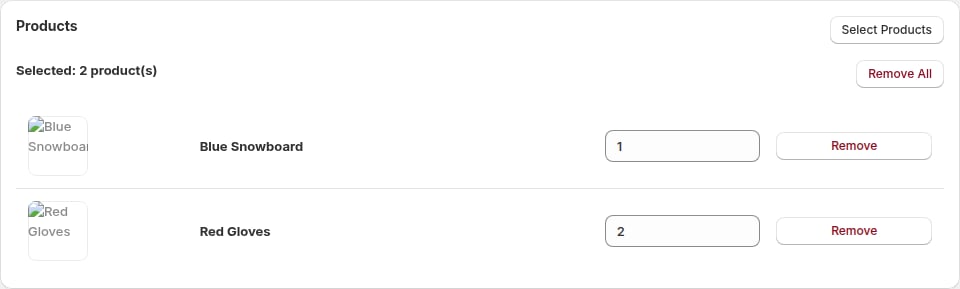
3
Name your bundle
Enter a name like “Complete Breakfast Bundle” or “3-Product Skincare Set”.
4
Set the discount
Enter a percentage discount (e.g., 20%). This discount applies when customers buy all products in the bundle.
5
Activate
Toggle the status to Active and click Save.
Bundle settings
Product requirements
- Minimum products: 2
- Maximum products: No limit
- Purchase requirement: All products must be added to cart to receive discount
Discount
- Type: Percentage only
- Range: 1% to 99%
- Application: Applies to the total of all products when all are in cart
How it appears on your store
Product page widget
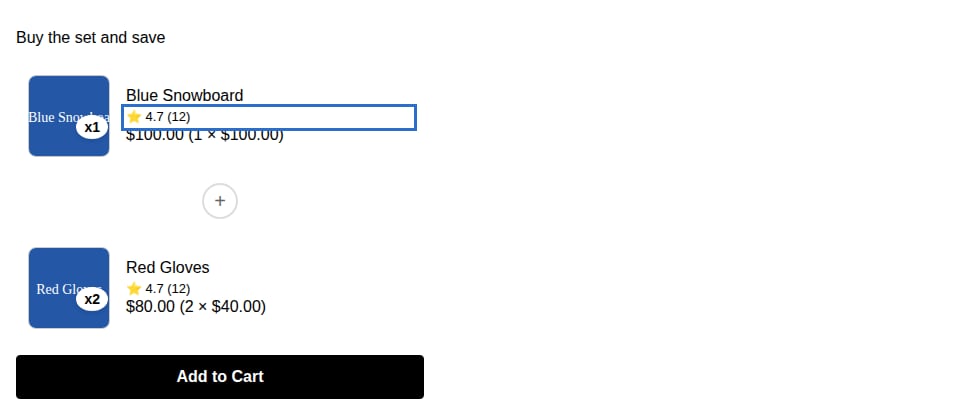
- “Buy these X products together, save Y%”
- Product images and prices
- Total original price
- Bundle price after discount
- Savings amount
- Add to cart button
Cart
When all products are added:- Individual line items for each product
- Discount line item with savings
- Updated total
Sell a bundle as a subscription
Fixed, Classic, and BOGO bundles can be bought on a subscription.- Give every product in the bundle a selling plan with the same name, for example “Monthly”. Appfox Subscriptions, Shopify Subscriptions, and other apps that use Shopify selling plans all work.
- Open the bundle, go to the widget settings, and turn on Let shoppers subscribe to this bundle under Subscriptions.
Best practices
- Clear quantity messaging: Make it clear customers need to buy all products
- Attractive discounts: 15-25% typically converts well for Fixed Bundles
- Logical grouping: Products should make sense as a set
- Value proposition: Show the savings prominently