

What is an FBT Bundle?
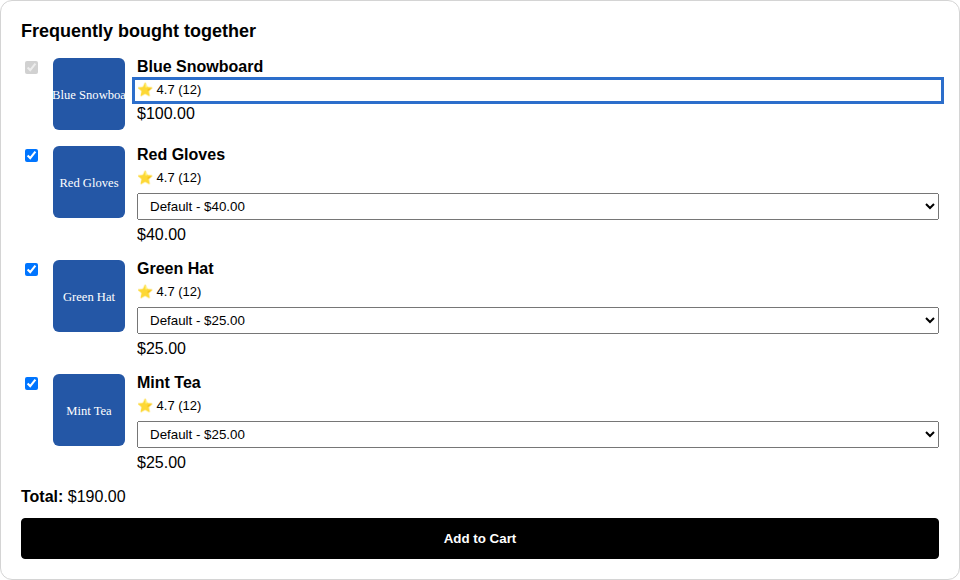
An FBT Bundle shows the current product plus 1-3 recommended items. Shoppers can select variants for each recommended item, see the total price, and add everything to cart together. An optional discount applies automatically when all items are purchased together. Example: On a laptop product page, show “Frequently Bought Together” with a laptop case, wireless mouse, and USB hub. Shoppers select their preferred variants and add all items to cart with 10% off.When to use FBT Bundles
FBT Bundles work best for:- Cross-selling complementary products: Accessories, add-ons, or items that pair well
- Increasing average order value: Encourage customers to buy more in one transaction
- Reducing decision fatigue: Pre-select smart recommendations for shoppers
- Product discovery: Surface items customers might not have found otherwise
How FBT Bundles Work
- Shopper views product page where FBT bundle is active
- Widget displays recommendations (1-3 items) with checkboxes and variant selectors
- Shopper selects items and variants they want to add
- Clicks “Add selected to cart” - all items added in one action
- Optional discount applies automatically at checkout when all FBT items are in cart
- Inventory decrements for the actual products purchased
Creating an FBT Bundle
1
Create the bundle
Go to Bundles → Create Bundle → Frequently Bought Together
2
Set basic info
- Internal name: For your reference (e.g., “Laptop Accessories FBT”)
- Widget title: Shown to customers (e.g., “Frequently Bought Together”)
- Button text: CTA text (default: “Add selected to cart”)
- Max Items: Choose 1-3 recommended items
3
Choose recommendation source
Pick how recommendations are generated: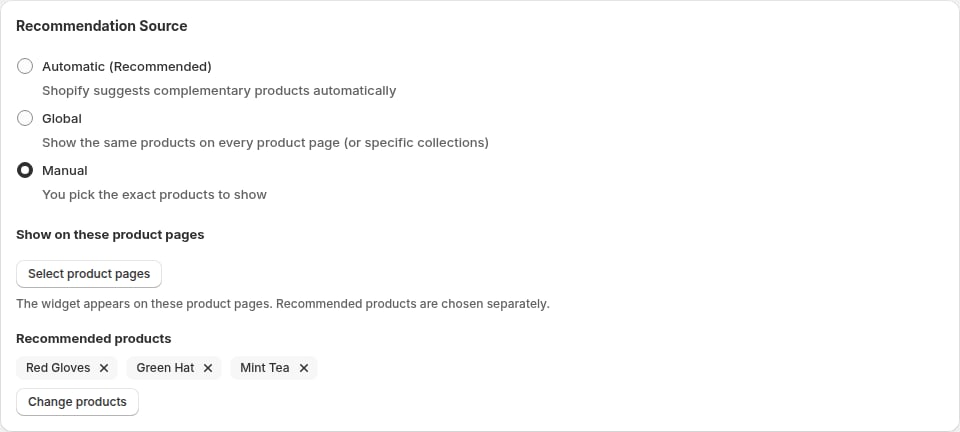
- Automatic (Recommended): Shopify suggests complementary products automatically. Fastest setup. Optionally pick Show on these product pages; leave empty to show the widget on every product page.
- Global: Show the same products on every product page (or specific collections)
- Manual: You pick the product pages the widget appears on, and the exact products to recommend
4
Set optional discount
Choose whether to offer a discount when all FBT items are purchased together:
- No discount: Recommendations only, no price incentive
- Percentage off: E.g., 10% off when all items added
- Fixed amount off: E.g., $15 off bundle
5
Set status and save
- Active: Widget appears on product pages immediately
- Paused: Bundle saved but not shown to customers
Recommendation sources
Automatic
Shopify analyzes your product catalog and suggests complementary items using its built-in recommendation engine. The algorithm considers:- Product type, tags, and collections
- Purchase patterns (if available)
- Product attributes
Global
Show the same recommended products on every product page (or only on products in specific collections). Best for:- Bestsellers you want to promote everywhere
- Universal accessories (e.g., gift wrap, care kits)
- Cross-category bundles
- Select Global as recommendation source
- Click Select products and pick the products in the Shopify picker
- Optionally, click Select collections to show the widget only on products in those collections
Manual
You choose exact products to recommend. Manual recommendations override Automatic and Global for the products they’re set on. Best for:- Curated bundles with specific pairings
- Seasonal promotions
- High-touch merchandising
- Select Manual as recommendation source
- Click Select product pages and pick the products whose pages should show the widget
- Click Select products and pick the recommended items in the Shopify picker
Adding the Widget to Your Theme
The FBT widget is part of the Bundles (product page) app block, the same block that shows your other bundles on product pages. If the block is already on your product template, you don’t need to add it again. To add it yourself:1
Open the theme editor
Go to Online Store → Themes in Shopify admin, then click Customize.
2
Add the app block
In the theme editor:
- Select a product page template (usually Default product)
- Click Add block in the product information section
- Choose Bundles (product page) under Apps
3
Position the widget
Drag the app block to your preferred location (e.g., below product description or above “Add to Cart”).
4
Save
Select Save in the save bar.
Cart page
The FBT widget appears on product pages only. The cart drawer and cart page upsells (Cart drawer offers and Cart page offers) suggest products that complete your other bundle types; they don’t show FBT recommendations.Styling and Customization
Customize widget appearance in Settings → Customize Appearance. All bundle widgets share the same styling controls:- Colors: Background, text, buttons, borders
- Typography: Font family, sizes, weights
- Spacing: Padding, margins, gaps
- Custom CSS: Advanced styling overrides
Discounts and Pricing
How discounts work
When you configure a discount:- Shoppers see the discount offer in the FBT widget
- Items are added to cart with
_appfox_fbt_bundle_idproperty - At checkout, Shopify Functions detect all FBT items in cart
- Discount applies automatically if all items are present
- Discount applies exactly once per FBT bundle (not stacked)
Discount types
- Percentage: E.g., 15% off. Applies proportionally to each item
- Fixed amount: E.g., $20 off. Distributes proportionally across items based on price
Important notes
- Discounts stack with other non-FBT discounts (e.g., product-level discounts)
- FBT discount does NOT stack with other bundle discounts from this app
- If customer removes an FBT item from cart, discount no longer applies
Star ratings (optional)
Analytics
Track FBT performance in the Analytics dashboard:- Impressions: How many times the FBT widget was viewed
- Add-to-cart clicks: How many times “Add selected to cart” was clicked
- Revenue: Total revenue from FBT bundles
- Conversion rate: Impressions to add-to-cart ratio
Troubleshooting
Widget doesn’t appear
- Check that the bundle status is Active
- Verify the Bundles (product page) app block is added to your product template in the theme editor
- Check that the recommended products are active and published to your Online Store sales channel. Products the storefront can’t sell are left out, and with none left the widget stays hidden
- Ensure the product has an active FBT bundle configured
- For Global: confirm the recommended products (and optional collections) are correct
- For Manual: confirm you picked Show on these product pages (the pages the widget appears on) and Recommended products
- To change them, open the bundle from Bundles and click the edit icon
No recommendations shown (Automatic)
- Automatic uses Shopify’s own product recommendations: complementary products you set in the Shopify Search & Discovery app first, then related products Shopify picks
- Shopify’s recommendation engine requires sufficient product data
- New products may take time to generate recommendations
- Try switching to Global or Manual source temporarily
Discount not applying
- Verify all FBT items are in cart with correct properties
- Check that discount function is deployed:
shopify app deploy - Ensure discount is configured in bundle settings
Wrong products recommended
- For Automatic: Recommendations are determined by Shopify’s algorithm
- Switch to Global or Manual for full control over recommendations
Best practices
- Start with Automatic for fastest setup and ongoing optimization
- Use clear, benefit-driven titles: “Complete Your Setup” vs “Frequently Bought Together”
- Show 2-3 items for best results (1 item is too limiting, 3+ is overwhelming)
- Test discount amounts: 10-15% is a sweet spot for most stores
- Monitor analytics: Check conversion rates and adjust recommendation source if needed
- Match your brand: Customize widget styling to fit your store’s design