

What is a Mix & Match Bundle?
A Mix & Match Bundle lets customers select a specific quantity of products (with optional variant selection) from a larger pool of options. You define which products are available, set minimum and maximum quantities, and configure tiered discount offers based on the number of items selected. Example: “Choose any 5-10 teas for up to 20% off” or “Build your own 6-pack: Pick 6 protein bars from 12 flavors”Key features
- Variant Selection: Customers can choose specific variants (size, color, flavor) for each product they add
- Flexible Quantities: Set minimum and maximum product limits
- Tiered Discounts: Offer better discounts for larger quantities
- Multiple Selections: Customers can add the same product multiple times with different variants
- Dedicated Build-a-Box Page: Standalone page with labelled steps, product prices, savings, a running total, and a sticky add-to-cart button
- Translatable Text: Customize all UI text for international stores
Where the widget shows
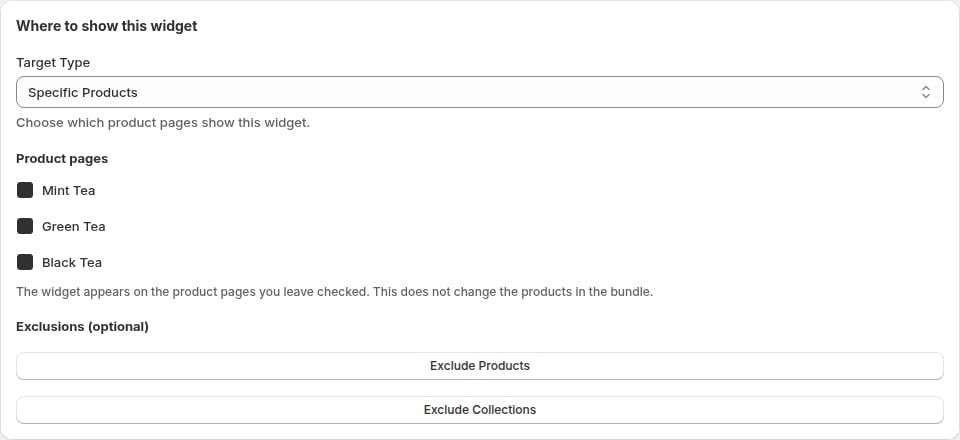
- Specific Products shows it on the pool product pages you leave checked under Product pages, including products that come from the collections in the pool. Leave every product checked to keep it on the whole pool. Unchecking a product hides the widget on that product’s page. The products shoppers can pick stay the same.
- Collections shows it on products in the collections you select there. That list is separate from the pool.
- All Products shows it on every product page.
When to use Mix & Match Bundles
Mix & Match Bundles work best for:- Variety packs: Letting customers sample different flavors, colors, or variants
- Samplers: Try-before-committing bundles
- Customizable sets: Giving customers control over their selection
- Discovery bundles: Encouraging trial of multiple products
Creating a Build-a-Box Bundle
1
Select bundle type
From the Bundles page, click Create a bundle and select Mix & Match Bundle.
2
Define the product pool
Click Select Products. Products already in the bundle are selected. Add 3 or more products to give meaningful choice. Saving that picker does not add a second copy of a product that is already in the bundle. You can also source products from collections.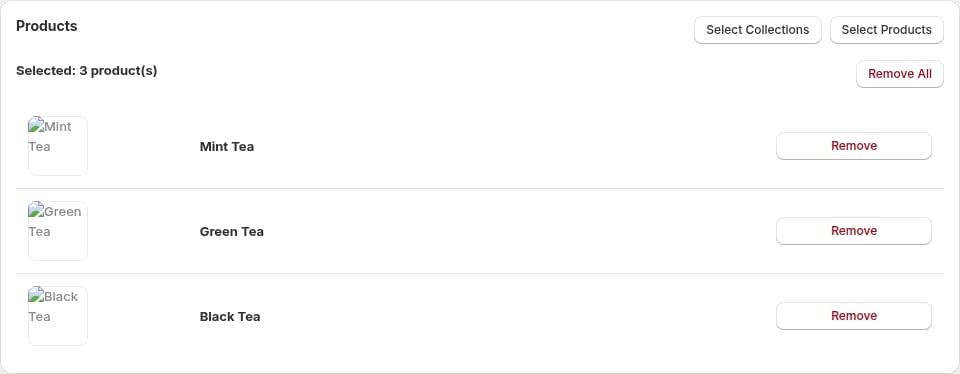
3
Set quantity limits
Under Item limits, set Minimum items and Maximum items to control the box size. For example:
- Min: 3, Max: 6 allows customers to choose between 3-6 items
- Min: 5, Max: 10 for larger variety boxes
4
Configure tiered offers
Set up quantity-based discount tiers in Tiers:
- 3+ items: 10% OFF
- 5+ items: 15% OFF
- 8+ items: 20% OFF
5
Name and describe your bundle
- Bundle name: Internal reference (e.g., “Tea Sampler Box”)
- Bundle title: Customer-facing title (e.g., “Build Your Perfect Tea Collection”)
- Subtitle (optional): Additional description shown below the title
6
Enable variant selection
Check Allow variants selection to let customers choose specific variants (size, color, flavor) for each product. This allows them to add the same product multiple times with different variants.
7
Customize text (optional)
Under Display Options, customize button text and validation messages for your store’s language and brand voice.
8
Get the Build-a-Box page URL
After saving, copy the Build-a-box page URL from the bundle editor to link directly to the standalone builder page.
9
Activate
Toggle to Active and select Save in the save bar.
Required items plus choose one
Use Product groups when your box needs a base kit and a required choice:- Select Products 1, 2, 3, and 4 as individual products.
- Click Add group, name it “Base kit”, and turn on Required, always included. Assign Products 1 and 2 to this group.
- Click Add group again and name it “Your extra”. Leave Customer picks minimum and Customer picks maximum at 1. Assign Products 3 and 4 to this group.
- Configure your offer for 3 items, then save.
Free gift
You can reward shoppers with a free gift when they fill the box.- In the bundle editor, find the Free gift card and select Give a free gift with this box.
- Under Unlocked when, choose The box target is reached, or A group is filled and pick the group. The group option appears once the bundle has product groups.
- Select Choose gift products and pick up to 10 products. Shoppers choose a variant of the gift when it has more than one.
- Optionally set a Gift section title.
Show the bundle as a product
Turn on Show as a product to list the Mix & Match bundle in collections and search. You set the Product title, Description, Price, Compare-at price, and Image URL. Customers still pick the designs. The product itself cannot be bought on its own. Number of items is an exact count. Exactly 3 means they choose 3 items for one set. Turning Show as a product off clears this count, so set Minimum items and Maximum items again under Item limits. If they add another full set, that set costs the same Price again. Extra items that do not make a full set stay at their normal price. On the product page, the picker replaces Add to cart on that product only. If the Bundles (product page) block is already on the product template, the picker shows there. If it is not, turn on the Appfox Bundles app embed once (and keep Mix & Match on in Settings → Storefront features), or add the Bundles (product page) block from the theme editor. You do not edit theme code. Shopify keeps the product out of stock, so the cart, quick add on a collection card, and Buy it now cannot buy it. A collection card may show Sold out until the shopper opens the product. Each design they choose is added as its own item, and stock comes off that item. The Price is what they pay for one completed selection, in your shop currency. The product page and checkout convert it with Shopify’s presentment rate. With Markets price lists or rounding rules, the price on the theme’s product card can differ from the price in the picker and at checkout. It has to be the same as or less than the items they can pick, and saving is blocked when it is higher, because checkout cannot charge more than the items cost. Compare-at price must be higher than the price. The first time you turn this on, approve Appfox’s updated permissions so it can keep that product out of stock. Pausing the bundle drafts the product, so it leaves your storefront. Deleting the bundle removes the product. Turning Show as a product off drafts the product and keeps it. Activating the bundle does not publish that product again until you turn Show as a product back on. After you save, add the product to a collection, or use an automated collection that matches it. You can put it in the same collection as the designs. Customers never see it as one of the items to pick, and its product page shows only this bundle. If Shopify cannot use the Image URL, the save stops with an error and the current image stays. Clear Image URL to remove the image.Bundle settings
Product pool
- Minimum products in pool: 3 (to give customers choice)
- Recommended: 6-15 products for optimal choice
- Product types: Can mix product types, or keep within one category
Quantity settings
- Required quantity: How many products customers must choose
- Typical values: 3, 5, 6, or 10 items
- Flexibility: Customers can choose any combination that meets the quantity
Discount options
Percentage discount:- Enter a percentage (e.g., 20%)
- Applied when customers add the required quantity
- Set a total price (e.g., $25)
- Customers pay this price regardless of which products they choose
- Great for “Any X for $Y” offers
How it appears on your store
Product page widget
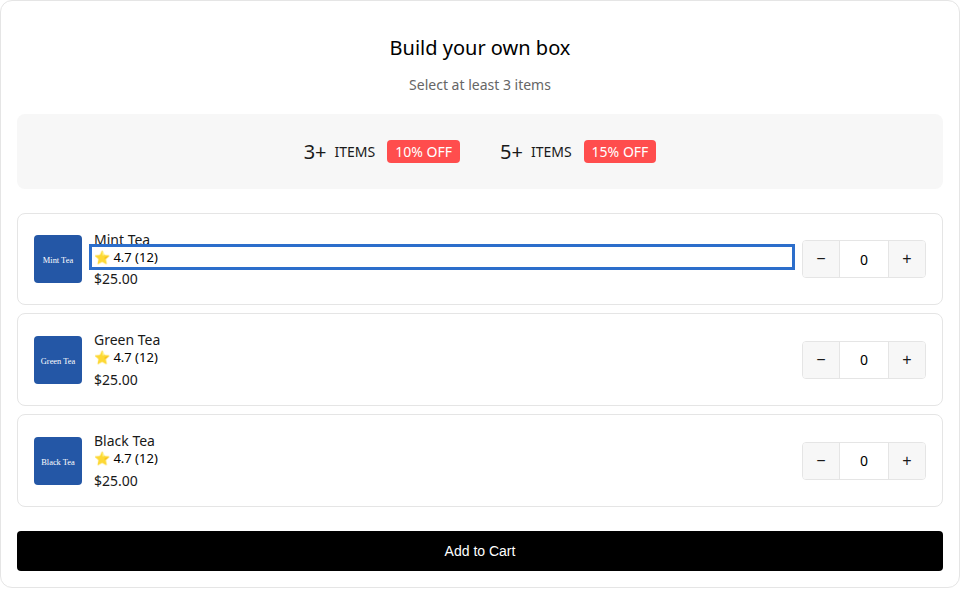
- Bundle title and subtitle
- Tiered discount offers (e.g., “3+ ITEMS 10% OFF”, “5+ ITEMS 20% OFF”)
- Grid of available products with images and prices
- Quantity selector for each product (+ / - buttons)
- Variant dropdown (when enabled) showing available options
- Real-time validation messages
- “Add to cart” button (enabled when quantity is within min/max range)
Dedicated Build-a-Box page
The standalone page (/apps/bundles?bundle=ID) includes:
- Labelled steps: choose items, unlock the discount, then add to cart
- Discount chips from your actual Mix & Match offers (percentage, fixed amount, or a set price)
- Product cards with prices in your shop’s money format
- A sticky summary with the selected count, savings, running total, and Add bundle to cart
- A success message or a redirect to the cart after they add, matching the other Appfox widgets
Cart
Customers see:- Individual line items for each selected product/variant
- Bundle identifier in line item properties
- Discount applied automatically at checkout via Shopify Functions
Best practices
Give meaningful choice
Give meaningful choice
Include at least 6-12 products in your pool so customers feel they have real choice. With variant selection enabled, even fewer products can offer substantial variety (e.g., 6 products with 3 variants each = 18 options).
Enable variant selection for product variety
Enable variant selection for product variety
If your products have multiple variants (flavors, colors, sizes), enable Allow variants selection. This lets customers:
- Choose 3 different flavors of the same tea
- Mix sizes in a clothing bundle
- Build a variety pack from a limited product set
Set realistic min/max limits
Set realistic min/max limits
- Minimum: High enough to make the discount worthwhile (typically 3-5)
- Maximum: Prevents oversized orders that might affect profitability (typically 10-20)
- Show the range clearly: “Build Your Box (3-6 items)” in the title
Use tiered discounts to encourage larger orders
Use tiered discounts to encourage larger orders
Create compelling tiers:
- 3 items: 10% off (entry tier)
- 5 items: 15% off (sweet spot)
- 8+ items: 20% off (bulk tier)
Link to the Build-a-Box page
Link to the Build-a-Box page
The standalone Build-a-Box page (
/apps/bundles?bundle=ID) provides a better experience than the on-page widget for complex bundles:- Add a “Build Your Box” button in your navigation
- Feature it on your homepage or collection pages
- Use it in email campaigns
- Share the link on social media
Keep products similar in value
Keep products similar in value
If products have widely different prices, use percentage discounts rather than fixed pricing. This prevents customers from gaming the system by choosing only expensive items.
Customize text for your audience
Customize text for your audience
Use the translatable text fields to:
- Match your brand voice
- Translate for international customers
- Create urgency (“Only more to get 20% off!”)
- Provide helpful guidance
Group similar products
Group similar products
Mix & Match works best within a category (all teas, all protein bars, all candles) rather than across disparate categories. Customers understand the value better when products are related.
Example Mix & Match bundles
Food & Beverage
Coffee Sampler: Choose any 4 coffee bags from our collection for $40
Fashion
T-Shirt Bundle: Pick any 5 basic tees for $50 (usually $15 each)
Beauty
Bath Bomb Variety Pack: Select 6 bath bombs from 15 scents for $30
Snacks
Protein Bar Mix: Build your own 10-pack, choose from 12 flavors, 15% off
Pricing strategies
Fixed bundle price (recommended for similar-priced products)
Scenario: All teas cost $8-$10 each- Offer: Choose any 5 for $35 (regular price would be $40-$50)
- Benefit: Simple, clear value proposition
- Customer behavior: More likely to explore different options
Percentage discount (recommended for varied pricing)
Scenario: Products range from $5 to $20- Offer: Choose any 6 items, get 20% off
- Benefit: Fair discount regardless of selection
- Customer behavior: May gravitate toward higher-priced items (which is fine)
Troubleshooting
Widget not showing products:- Verify bundle status is Active
- Check that product pool has at least 2 products
- Ensure products have available inventory
- Check browser console for JavaScript errors
- Confirm Allow variants selection is enabled in bundle settings
- Product must have multiple variants (more than the default variant)
- Dropdown only appears when at least one unit is selected
- Check that selected quantity is between min/max limits
- Verify at least one offer tier is configured
- Ensure selected quantity meets the minimum for at least one offer
- Verify the bundle ID in the URL is correct (
/apps/bundles?bundle=123) - Check that the app proxy is configured in Shopify admin
- Bundle must be Active status
- Confirm Shopify Functions extension is deployed
- Check that bundle products have the
appfox_bundleproperty in cart - Verify offer conditions match the cart quantity
- Test with a fresh cart (clear existing items)
- Custom text fields override defaults; set them per bundle if needed
- Check Prisma migration ran successfully to add text fields
- Verify bundle data includes custom text fields