

Dashboard overview

Greeting
A greeting for your time of day, with your first name when Shopify has it.Performance
Once you have a bundle, the page opens with five metrics in your store’s currency:- Revenue generated: Revenue from items sold in bundles
- Bundle views: Times a bundle was shown to a shopper, counted once per bundle per shopper session
- Orders received: Orders that contained at least one bundle
- Total savings: Discounts your customers got through bundles
- Bundle ROI: Bundle revenue divided by the discounts given. Shows — when no discounts were given
Setup guide
For new merchants, the setup guide appears near the top, under Performance once you have a bundle. Each step shows a check mark when it’s done; the app works this out from your store, so there’s nothing to tick off by hand.1
Create your first bundle
Done once your store has at least one bundle. Create a bundle opens the type picker. After that, the step’s button is View bundles.
2
Add Bundles (product page) to your store
Direct link to the theme editor to add the Bundles (product page) app block. Done once the block is on your product template. After that, the step’s button is View in theme.
3
Enable cart offers (optional)
Add Cart page offers opens the cart template in the theme editor with the Cart page offers block added to an Apps section. Click Save, then return to the app to see the step checked. You can also complete this step by turning on the Appfox Bundles app embed and saving your published theme. Products only appear when an active bundle includes a product already in the cart and at least one product still to add.
Storefront status
Shows whether Bundles (product page), Appfox Bundles (the app embed), Cart page offers, and Single bundle (any page) are live on your published theme. Draft theme changes don’t count until you publish that theme. These names match the blocks and embeds in the theme editor. The card opens with a summary such as “4 of 5 features active” and a progress bar. Features that need attention are listed first, each with a short description. Active features are tucked away; select Show active features to see them. When everything is active, the card shrinks to an “All set” message. Each feature shows one of these statuses:- Active: The block or embed is enabled.
- Not added: The block or embed is available but isn’t enabled.
- Unavailable: Shopify reports that the block or embed isn’t currently available.
- Couldn’t check: The app couldn’t confirm the status. Open the app in Shopify admin and select Refresh status to try again.
Bundles
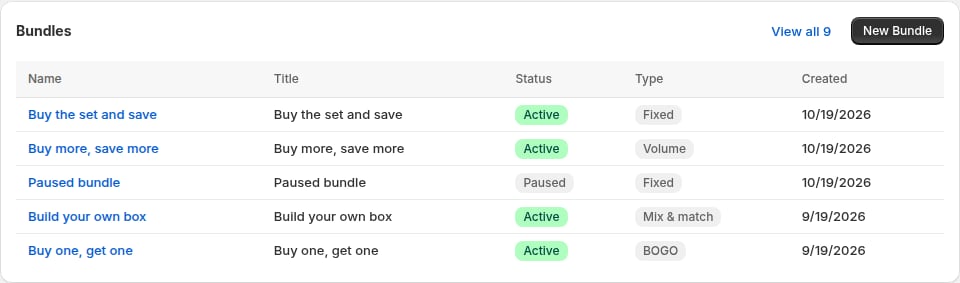
If you don’t have a bundle yet, the home page shows the bundle types so you can start one. After that, you see your five newest bundles with their status and type. Click View all to open the full list, or New Bundle to create another.Feedback and support
- Enjoying Bundles?: After your first order that contained a bundle, a card asks for an honest review on the Shopify App Store. Click Leave a review or close the card with ×. Either way, it doesn’t come back.
- Get support: Request a feature, Help docs (these docs), or Live chat to chat with us.
- Discover More Appfox Apps: Appfox Subscriptions and Appfox Order Editing on the Shopify App Store.
Navigation menu
Use the left navigation to access key sections:- Home: Dashboard overview (current page)
- Bundles: Create and manage all your bundles
- Orders: View orders containing bundles
- Analytics: Detailed performance tracking and insights
- Settings: Customize appearance and configure integrations
Quick actions
From the dashboard, you can:- Create a bundle: Click New Bundle in the bundles card (or Create on a bundle type if you have none yet)
- View detailed analytics: Click View all analytics
- Manage bundles: Click View all in the bundles card
- Access theme editor: Use quick links in setup guide to add app blocks
- Get support: Click Live chat or email support directly
Setup completion tracking
The dashboard tracks your setup progress:Bundle created
Bundle created
At least one bundle exists in your store
Bundles (product page) added
Bundles (product page) added
Product page app block is added to your theme
Cart offers enabled (optional)
Cart offers enabled (optional)
Cart page app block or cart drawer embed is added for offers
Notifications and alerts
The dashboard displays important notifications:- Storefront status: Check which blocks and embeds are active, even after you dismiss the setup guide
- Setup incomplete: The setup guide shows the remaining steps
Next steps from dashboard
Create more bundles
Add additional bundles to increase opportunities
View detailed analytics
Track performance and optimize strategy
Customize appearance
Match your store’s branding
View orders
See which bundles are driving sales